

For years, creating complex physics simulations in Maxon's Cinema 4D required using the classic Bullet Dynamics tag, which often struggled to calculate collisions between different object types (like soft bodies and rigid elements) in the same physical space.
The introduction of Cinema 4D's rewritten Unified Simulation System changes the game, offering a highly optimized, GPU-accelerated engine designed to handle complex interactions with ease.
1. The Architectural Shift: How the Unified Solver Computes Physics
Unlike older split solvers, Cinema 4D's Unified Simulation solver processes rigid bodies, soft bodies, cloth, ropes, and pyro inside a single common network.

This unified approach allows a falling rigid block to tear through a soft cloth sheet, which then collides with a rope mesh, while emitting realistic pyro smoke—all interacting in the same physical space with perfect accuracy.
2. Transitioning from Bullet Tags to Unified Dynamics
To start using the new physics solver, right-click on your model inside the Object Manager and navigate to the Simulation Tags menu.
Select Rigid Body or Soft Body from the updated simulation tag list. You will immediately notice a massive performance improvement, as the new solver is fully GPU-accelerated, allowing you to run interactive previews directly in the viewport.
3. Creating Complex Rigid-Soft Body Collisions
To create a realistic collision between soft and rigid objects:
- Apply a Rigid Body tag to your collision obstacle.
- Apply a Soft Body tag to your active deformation mesh.
- Configure realistic Stiffness and Damping parameters under the Soft Body settings to control how the mesh warps on impact.
The unified solver handles these complex interactions seamlessly, preventing the meshes from clipping or glitching on impact.
4. Simulating Realistic Ropes and Soft Cable Arrays
The Unified Simulation tag list includes a powerful Rope tag, allowing you to simulate highly realistic cables, wires, and ropes.
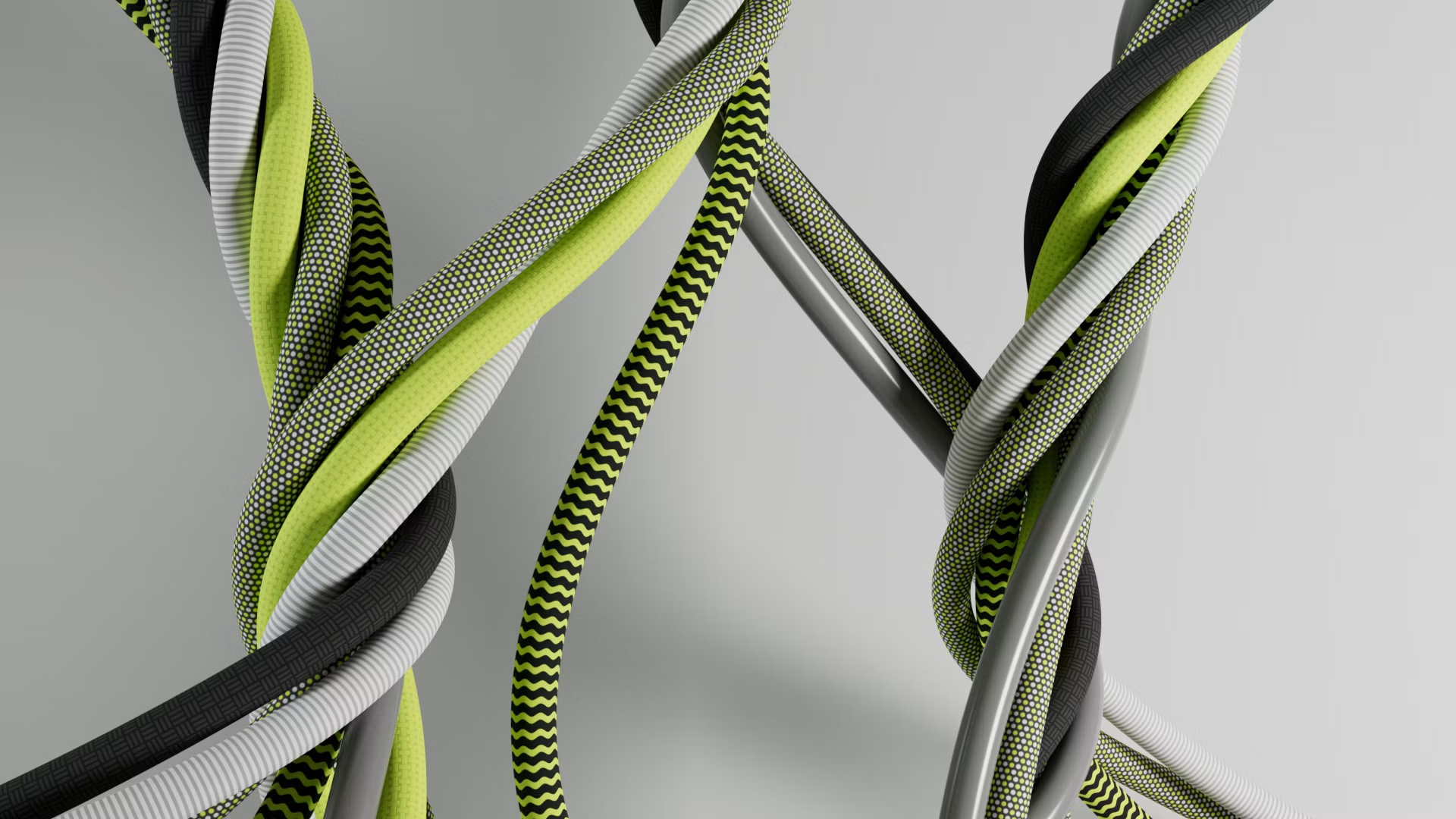
Combine a Rope tag with a Spline Cloner to scatter multiple cables across your scenes. You can set up custom anchor points to connect ropes to moving rigid bodies, creating complex procedural setups that react naturally to wind and gravity forces.
5. Caching Simulations and Managing Project Dependencies
Recalculating physics simulations on every frame is highly resource-intensive and can lead to rendering inconsistencies.
Always bake your simulations using the Cache tab inside the active Simulation Scene settings. Caching saves your physics calculations directly to disk on a frame-by-frame basis, ensuring stable rendering across different computer systems.
6. Shading Your Simulation Meshes with Redshift
Once simulated, your rigid and soft meshes must be shaded to capture realistic materials.
Apply detailed Redshift shaders to your models, utilizing high-resolution roughness and metallic maps to define realistic surfaces. Using Redshift's physical material system ensures your simulations react realistically to scene lighting.
7. Viewing Real-Time Viewport Previews with Level of Detail (LOD)
To maintain responsive viewport playback while animating complex physics setups, utilize Level of Detail (LOD) controls.

Configure low-resolution proxies for your models during viewport simulations. Cinema 4D will calculate the physics using the lightweight proxies, and swap them with the high-resolution geometries automatically during rendering, keeping your workstation fast and fluid.
8. Offloading Heavy Physics Renders to Sky Render Farm Nodes
Rendering high-resolution animations that combine rigid-soft body simulations, detailed cloth movements, and realistic materials requires massive compute power.
Sky Render Farm’s advanced GPU clusters are fully optimized to run Cinema 4D simulations. Shifting your render workloads to our farm gives you immediate access to thousands of nodes, delivering finished, high-fidelity exports in minutes.