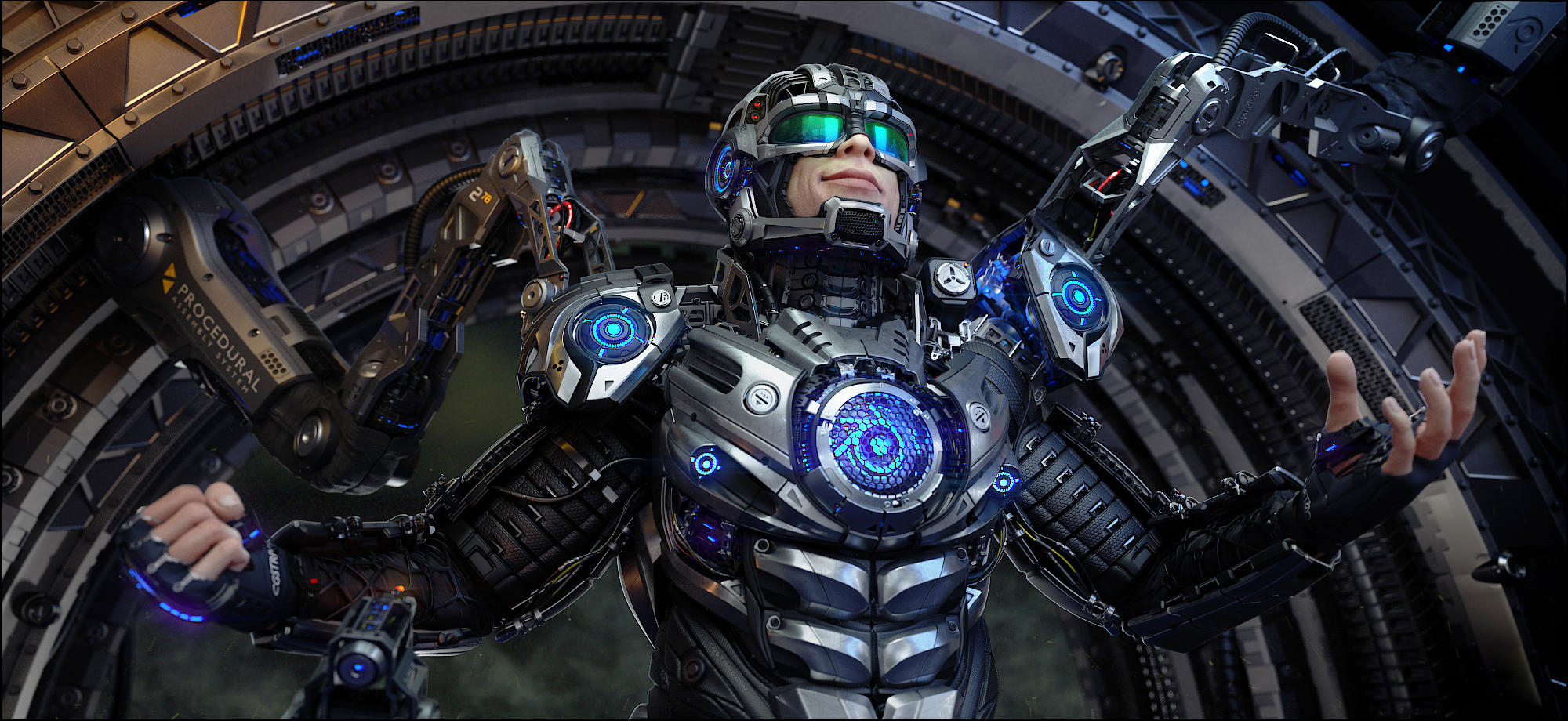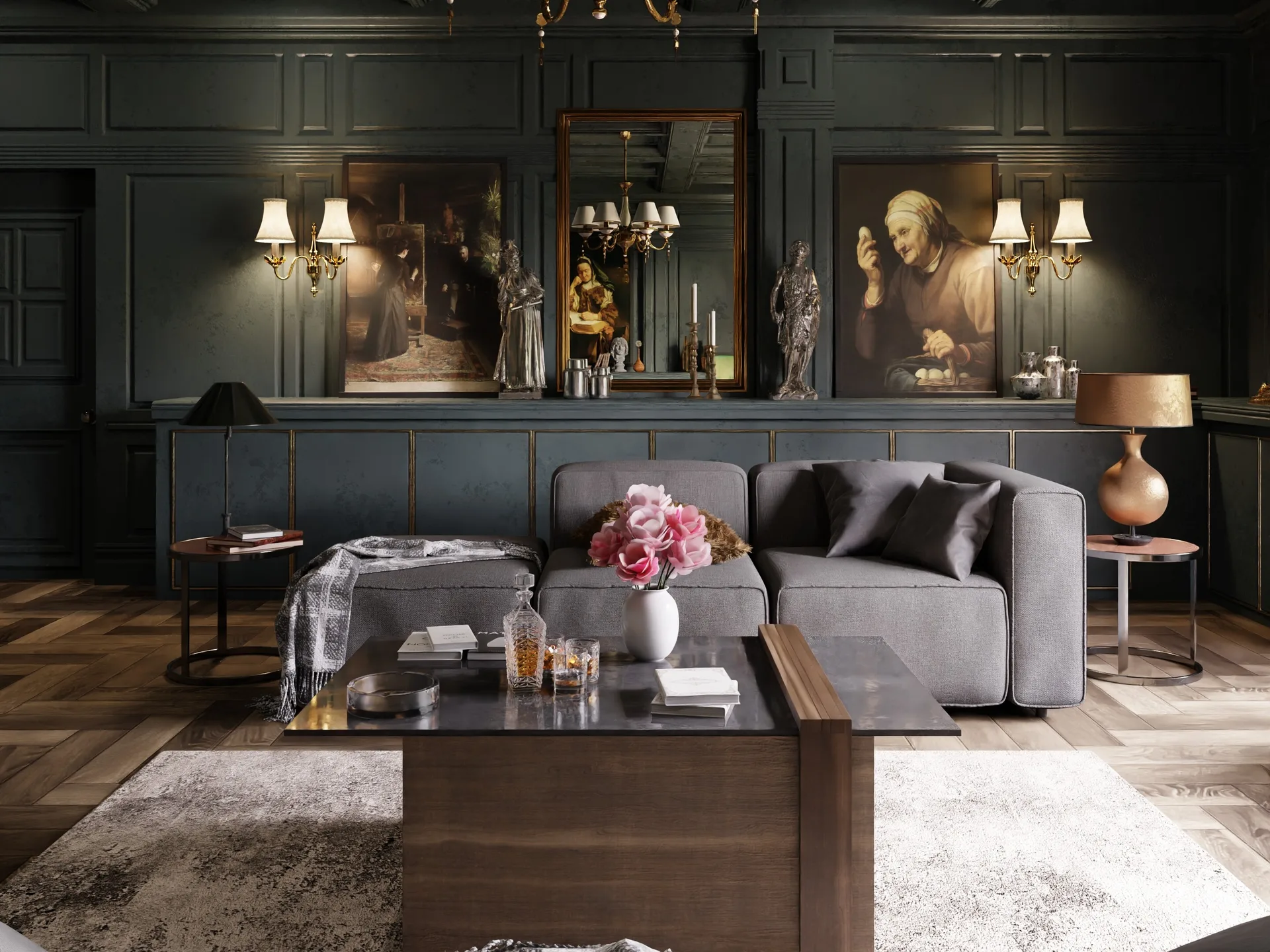
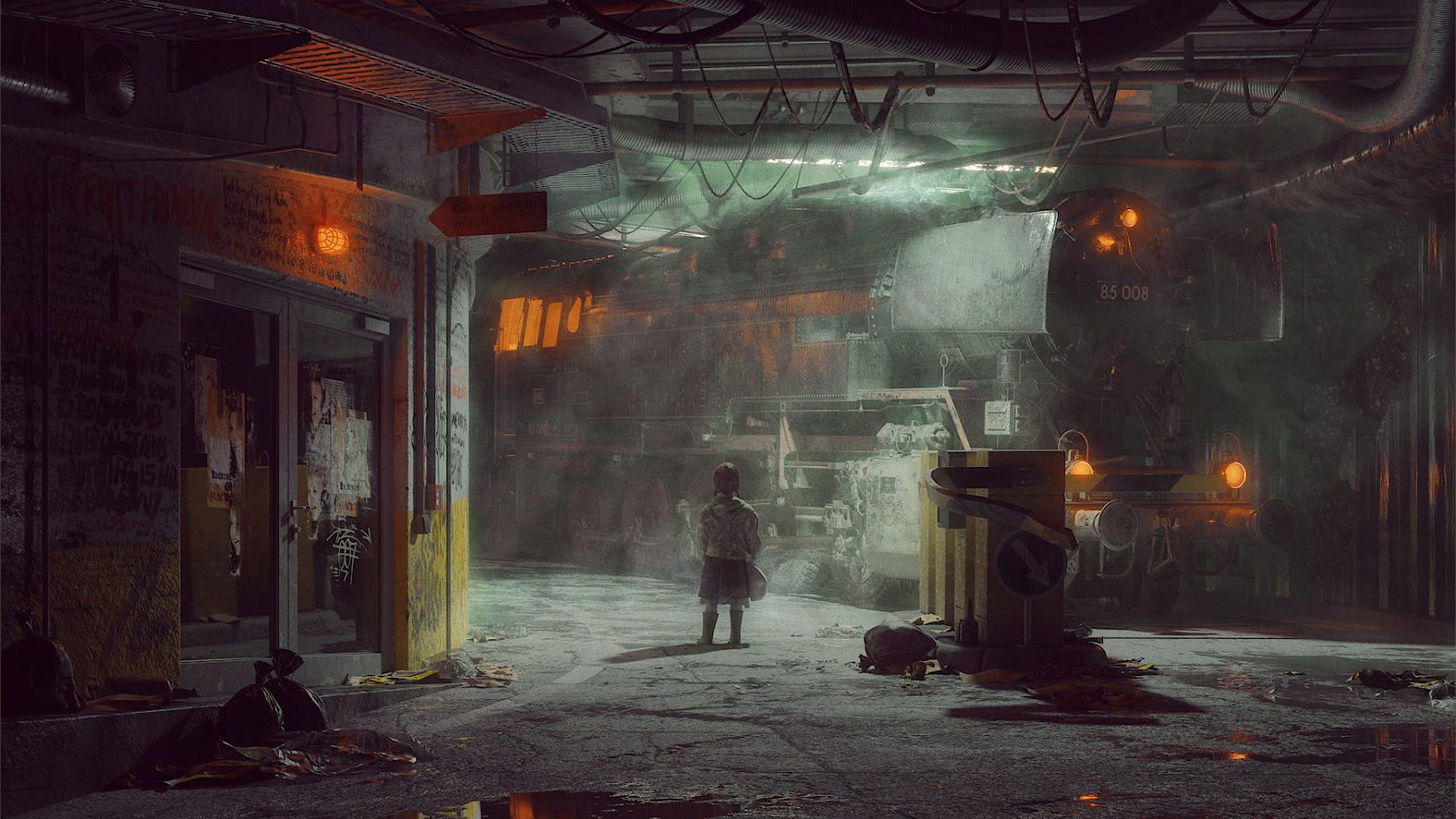
The release of Blender 4.2 LTS introduces "Eevee Next", a completely rewritten, highly optimized real-time rendering engine. It bridges the gap between interactive viewport feedback and offline, CPU/GPU path-traced quality, making real-time animation workflows more viable than ever before.
In this optimization guide, we will configure the essential viewport and render settings to achieve stunning results in Eevee Next.
1. Activating Screen-Space Raytracing & Real-Time Global Illumination
Eevee Next introduces native screen-space raytracing, allowing the viewport to calculate physical light bounces, contact shadows, and realistic color bleeding directly in real-time.
To activate this, navigate to the Render Properties panel, enable Ray Tracing, and turn on screen-space reflections. This allows nearby objects to reflect light onto each other naturally, adding immediate physical weight and realism to your real-time viewport.
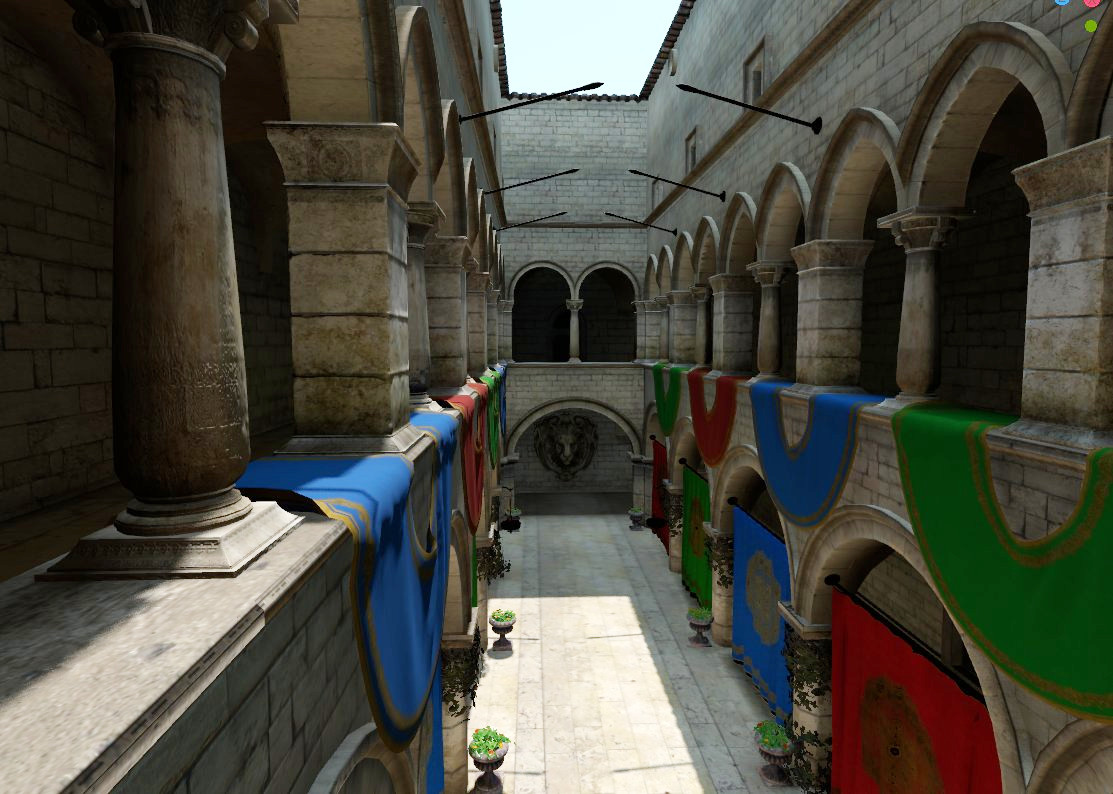
2. Shadow Map Resolutions and VRAM Optimization Workflows
Ray-traced shadows are highly resource-intensive and can quickly saturate your GPU's memory. To maintain smooth viewport performance, set your Shadow Pool resolution to a balanced 2K (2048px).
Using Cascaded Shadow Maps for large-scale scenes and enabling shadow filtering softeners helps reduce hard, pixelated shadow edges without taxing your VRAM budget, keeping your playback frame rates high.
3. Fine-Tuning Ambient Occlusion (AO) and Micro-Contact Shadows
Ambient Occlusion (AO) simulates contact shadows in cracks, corners, and joints. To prevent objects from looking like they are floating in space, turn on Ambient Occlusion inside the render panel and set a short distance parameter (e.g., 0.1m - 0.5m). This darkens contact points where surfaces meet, creating a realistic, grounded look.
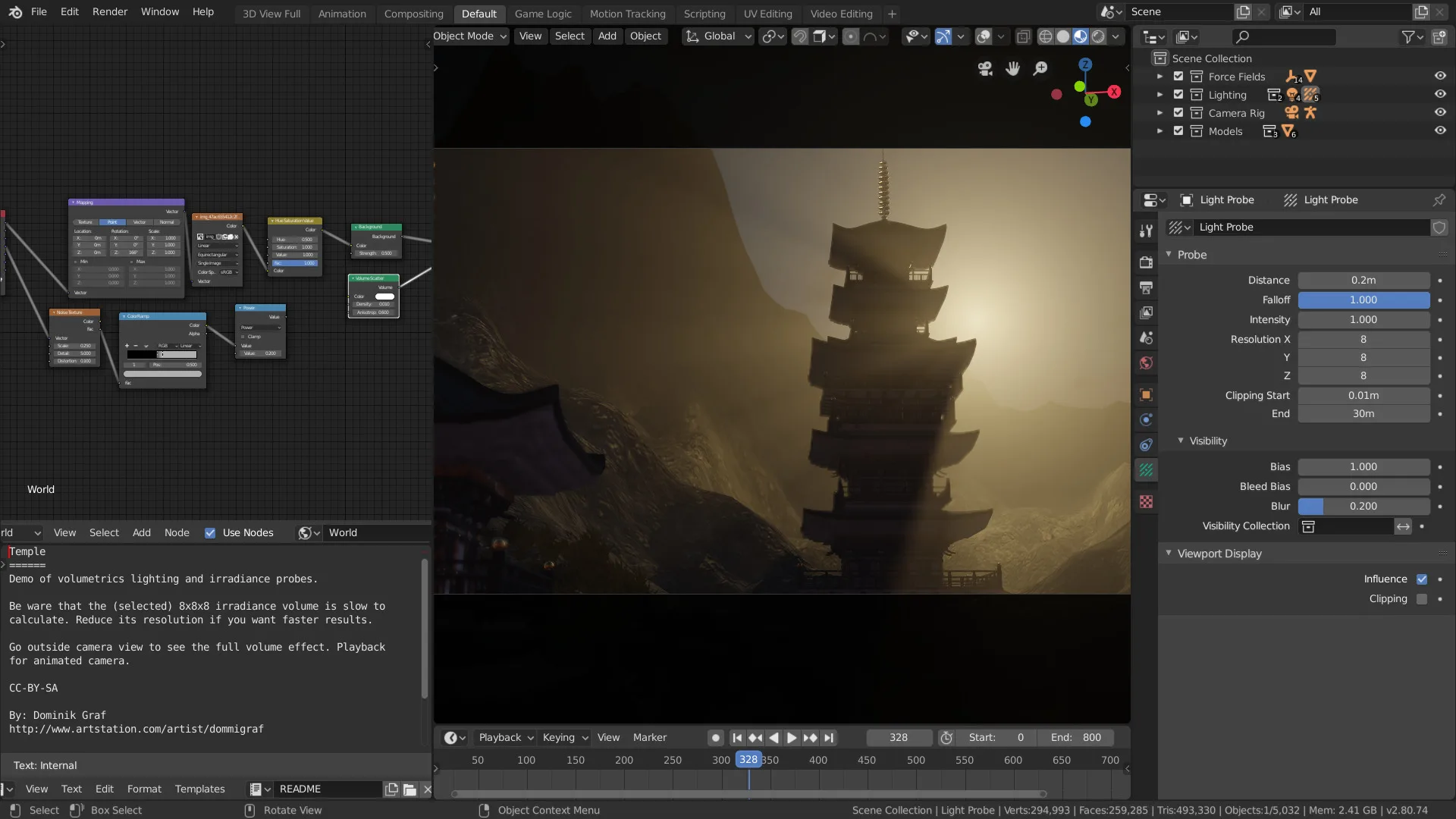
4. Configuring Light Probes and Irradiance Volumes for Static Baking
For environments with static lighting, you can achieve incredibly realistic indirect light bounces using Irradiance Volumes. These volumetric boxes contain grid points that capture and bake the surrounding lighting data.
By setting up an Irradiance Volume and baking the indirect lighting, Eevee can calculate complex, bounced light paths in seconds, providing a rendering experience that rival Cycles path tracing while maintaining interactive viewport speeds.
5. Optimizing Screen-Space Reflections (SSR) and Refractions
To make materials like glass, water, or polished wood look realistic, you must configure reflections and refractions properly.
Enable Screen-Space Refractions on individual materials under the settings panel. This allows Eevee to calculate ray-traced refractions through solid objects, letting you see through glass cups and water bottles in real-time with beautiful refraction distortion.
6. Scaling Real-Time Cinematic Exports on Sky Render Farm
When exporting long real-time animation sequences at high resolutions, running them locally can freeze your computer.
Shifting your render pipeline to Sky Render Farm allows you to run headless, command-line render scripts across multiple high-performance cloud nodes, completing your real-time exports in seconds while preserving local system resources.