
TyFlow has completely transformed the particle simulation landscape in Autodesk 3Ds Max, offering unmatched speed and physical accuracy. Whether you are creating crumbling bridges, collapsing buildings, or localized shattering FX, TyFlow’s event-driven workflow offers absolute control over every fragment.
In this masterclass, we will cover how to design high-impact concrete fracturing simulations and optimize them for production.
1. The Evolution of Particle Systems and Physics in 3Ds Max
In the past, creating complex destruction in 3Ds Max required slow, rigid toolsets.
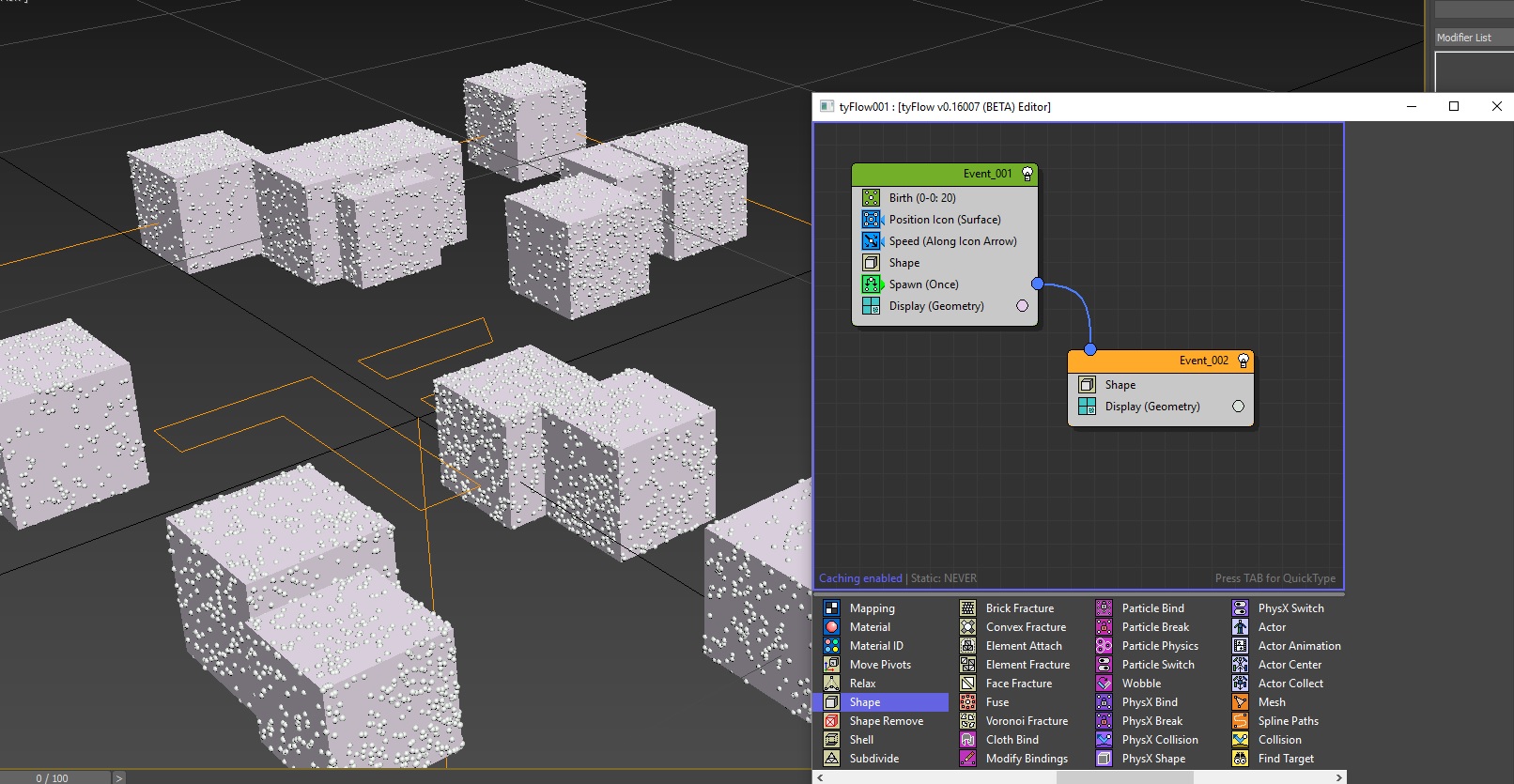
With TyFlow's CPU/GPU multi-threaded architecture, artists can simulate millions of interactive elements, collisions, and soft-body bindings in real-time, greatly accelerating VFX pipelines.
2. Building Event-Driven TyFlow Networks from Scratch
At its core, TyFlow operates on an event-driven model, where particles transition from one state to another based on triggers (such as age, speed, or collisions).
Start by defining a base particle emission event. Use a Birth operator, and combine it with a Position Object operator to distribute particles across your target model, establishing a clean foundation for your simulation.
3. Procedural Voronoi Fracturing: Creating Believable Structural Cracks
To simulate crumbling concrete, the source model must be broken into realistic fragments.
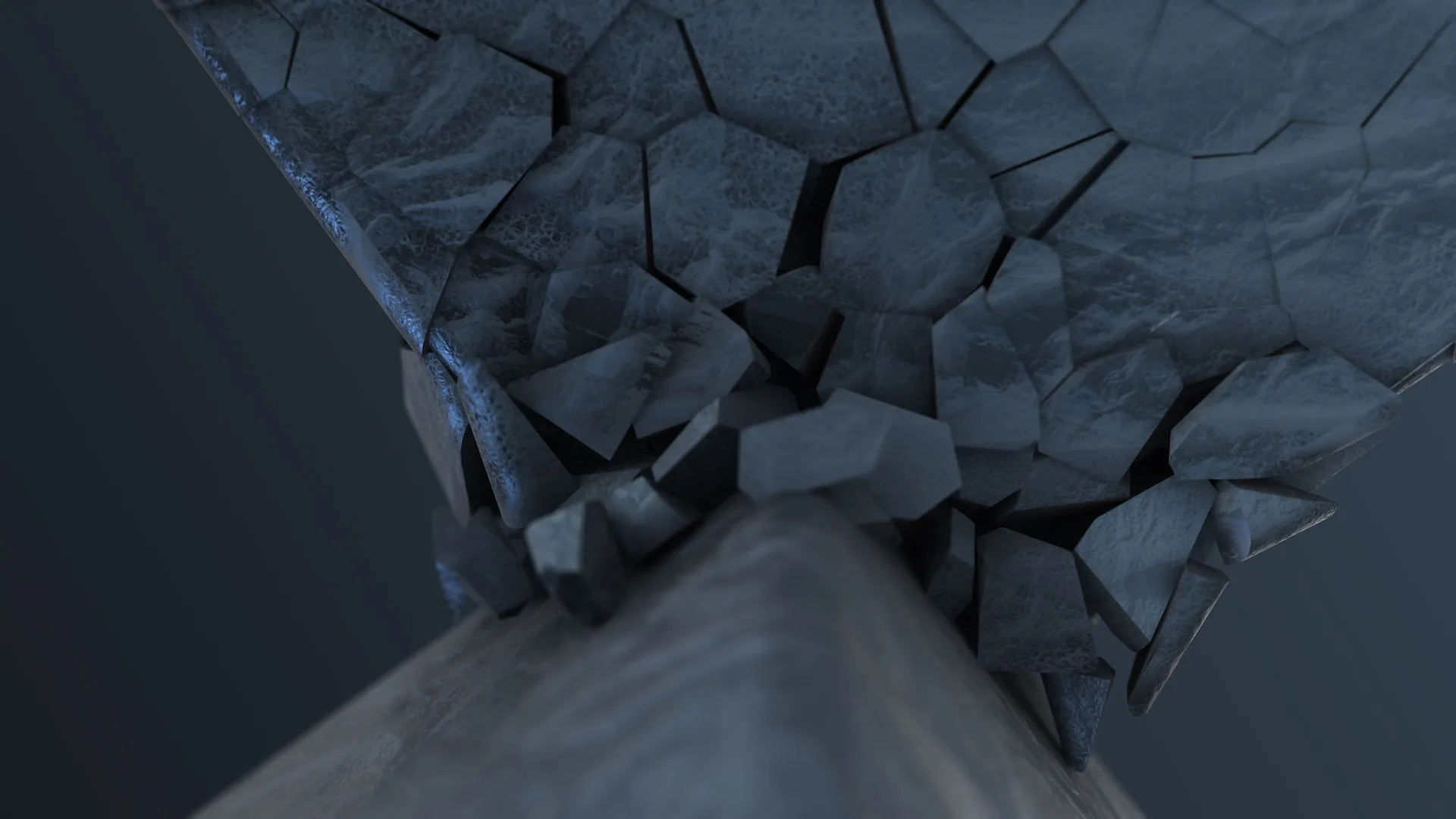
Add a Voronoi Fracture operator to your TyFlow event. This cuts your model into distinct fragments based on particle positions. By layering multiple fracture passes, you can create realistic cracks with high detail in impact areas.
4. Configuring PhysX Rigid-Body Colliders and Ground Friction
Once fractured, your concrete fragments must interact realistically with gravity and surroundings.
Introduce a PhysX Shape operator into your active event to enable rigid-body physics. Adjust your collision shape to match the mesh's boundaries, and set realistic mass and friction values so fragments slide and settle naturally on impact.
5. Managing Massive Fragment Counts and Optimizing Viewport Feedback
Simulating millions of rigid bodies can cause viewport lag and slow down your workflow.

To maintain responsiveness, use the Display operator to display your particles as simple bounding boxes or points in the viewport. This reduces graphics overhead while preserving full particle detail for rendering.
6. Caching Simulation Files and Solving Path Dependencies
For complex, multi-frame animations, recalculating physics on every play can cause inconsistencies.
Use TyFlow’s Export Particles operator to cache your simulations to disk. Caching locks in your physics calculations, ensuring your simulations render consistently across all nodes in a render farm.
7. Mapping Custom Inside-Face Textures for Debris Realism
When objects shatter, their interior surfaces should look different than their clean outer walls.
Use TyFlow’s material mapping options to assign unique material IDs to the interior faces generated by fracturing. This lets you apply rough, dusty concrete textures to the inside of cracks while keeping the outer walls clean.
8. Distributing Massive TyFlow Renders with Sky Render Farm's Multi-Threaded CPUs
Rendering complex particle simulations with detailed materials, dust, and motion blur can slow down local hardware.
Sky Render Farm’s high-core CPU nodes are designed to handle complex TyFlow calculations and renders with ease, delivering finished sequences in a fraction of the time.