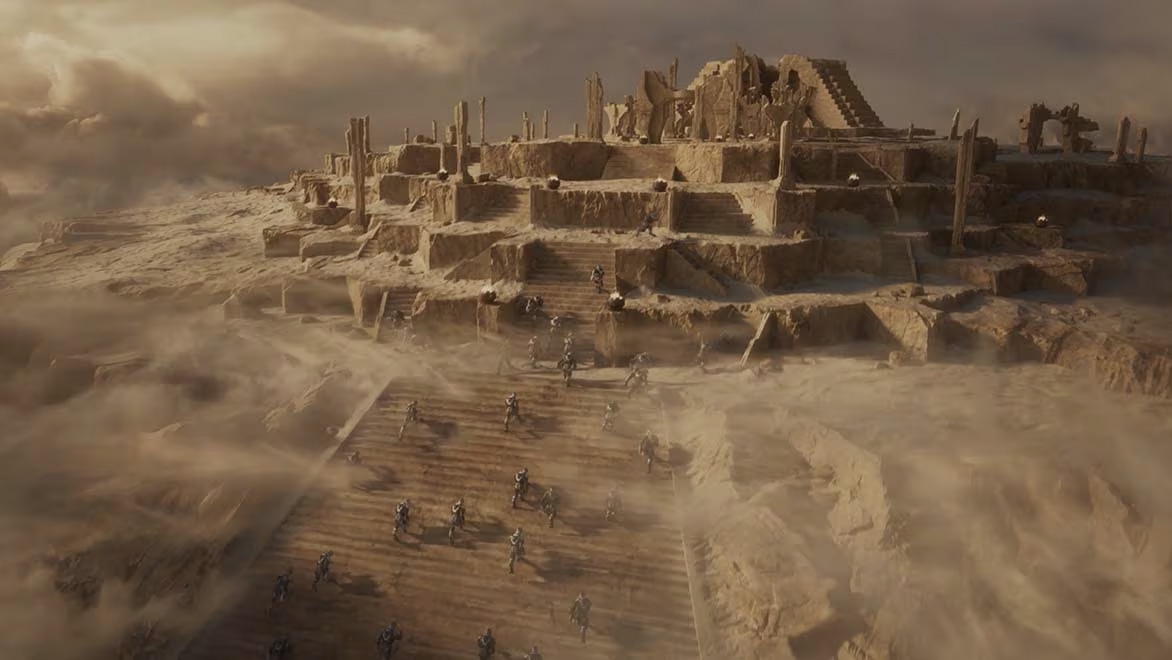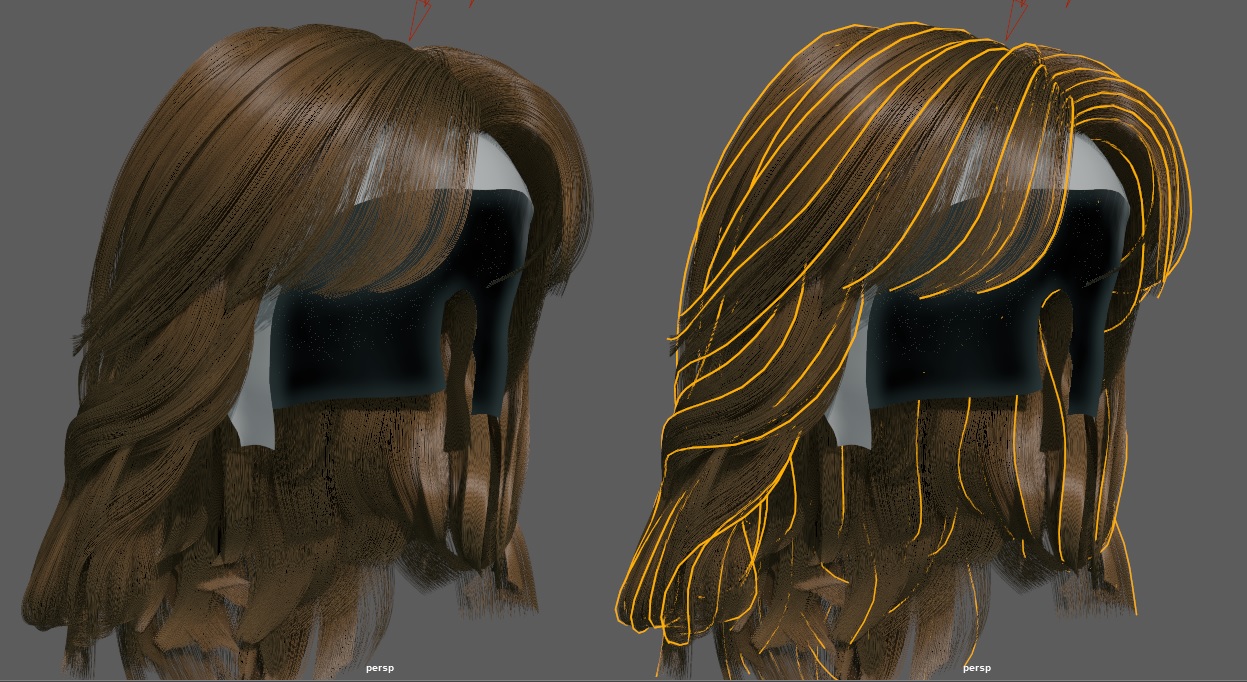
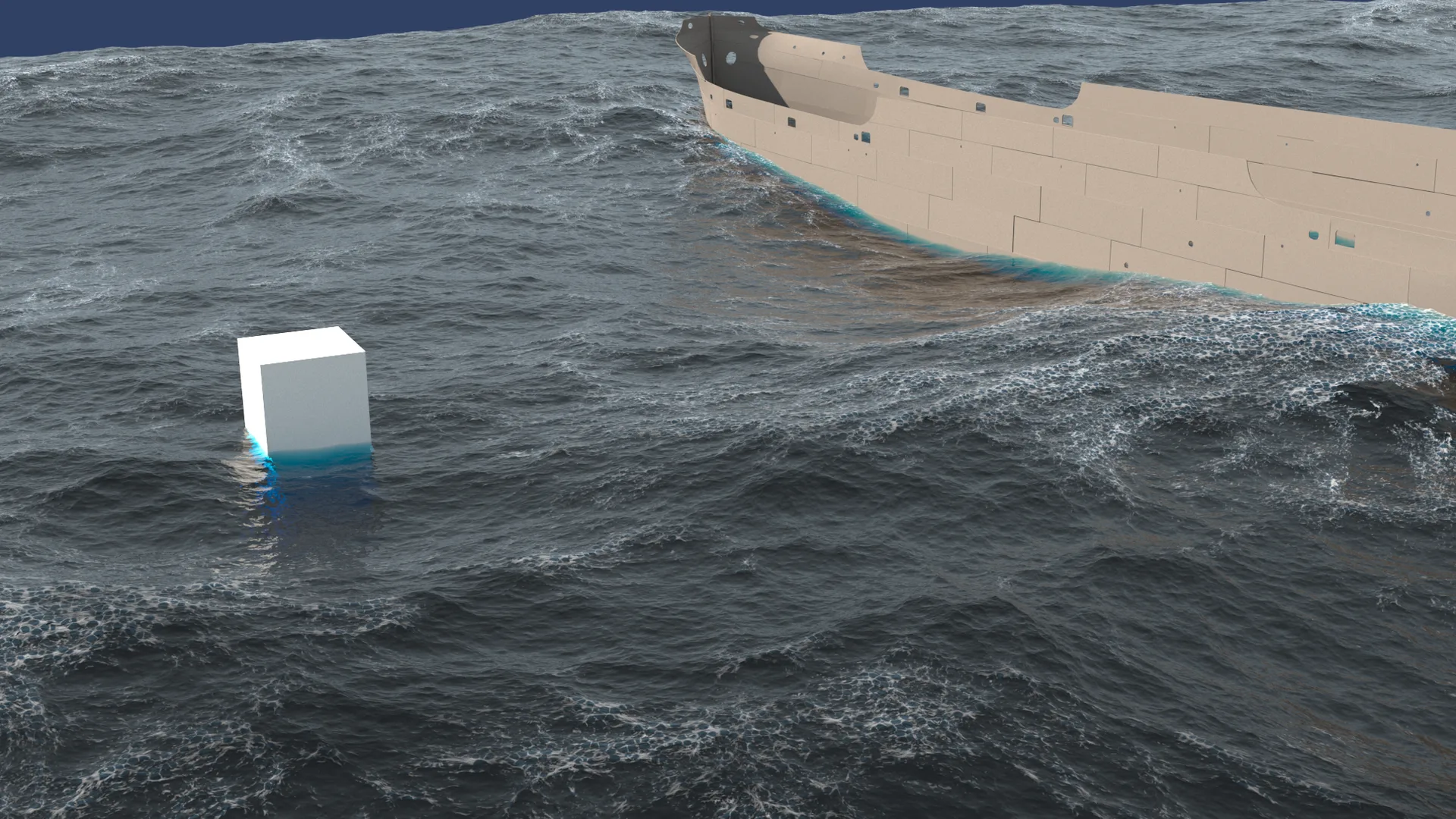
Simulating photorealistic ocean surfaces, crashing waves, and turbulent wakes is one of the most demanding tasks in visual effects (VFX) production. Autodesk Maya's Bifrost fluid solver offers a robust node-based visual programming environment designed to handle massive fluid simulations with incredible physical accuracy.
This advanced guide covers how to set up, optimize, and render large-scale ocean simulations inside Maya.
1. The Physics of Large-Scale Fluid Dynamics in VFX
To simulate water realistically, we must understand its motion. Large-scale fluids behave differently than small liquid splashes; they rely on wind speed, fetch length, and depth to generate waves of varying scales.
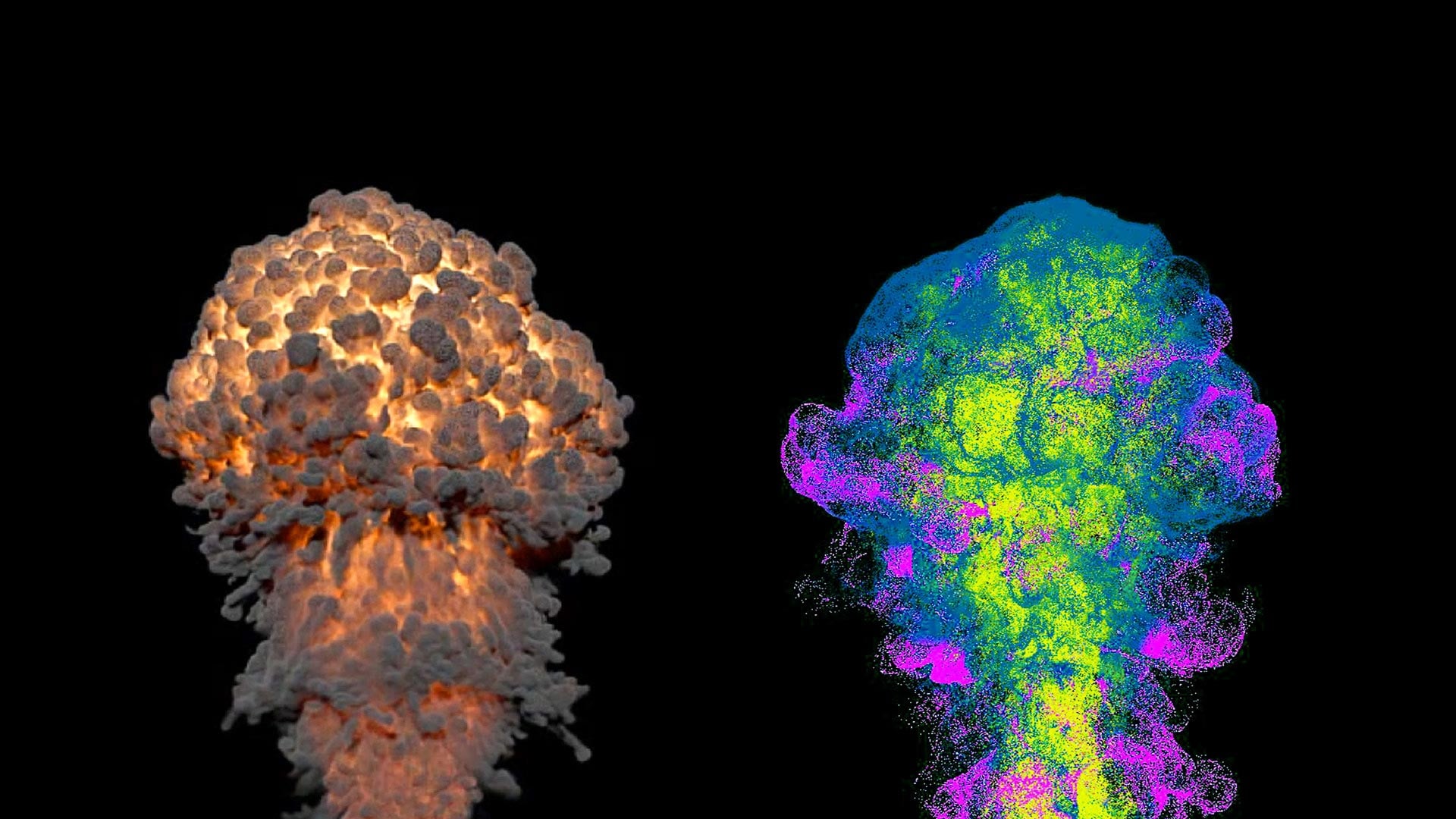
Bifrost's BOSS (Bifrost Ocean Simulation System) solves this by using spectral wave formulations to calculate realistic ocean heights and displacements across massive surfaces.
2. Establishing the Bifrost Liquid Aero and Foam Solvers
BOSS allows you to combine 2D spectral wave generators with 3D liquid solvers.
By setting up a base BOSS displacement grid, you can capture wide ocean movements. You can then define a localized 3D Bifrost Liquid container around your interaction objects (such as a boat or character) to calculate high-detail splashes and wakes.
3. Spatial Resolution and Time Stepping Adjustments
Finding the perfect balance between simulation quality and compute time is a critical skill for VFX artists.
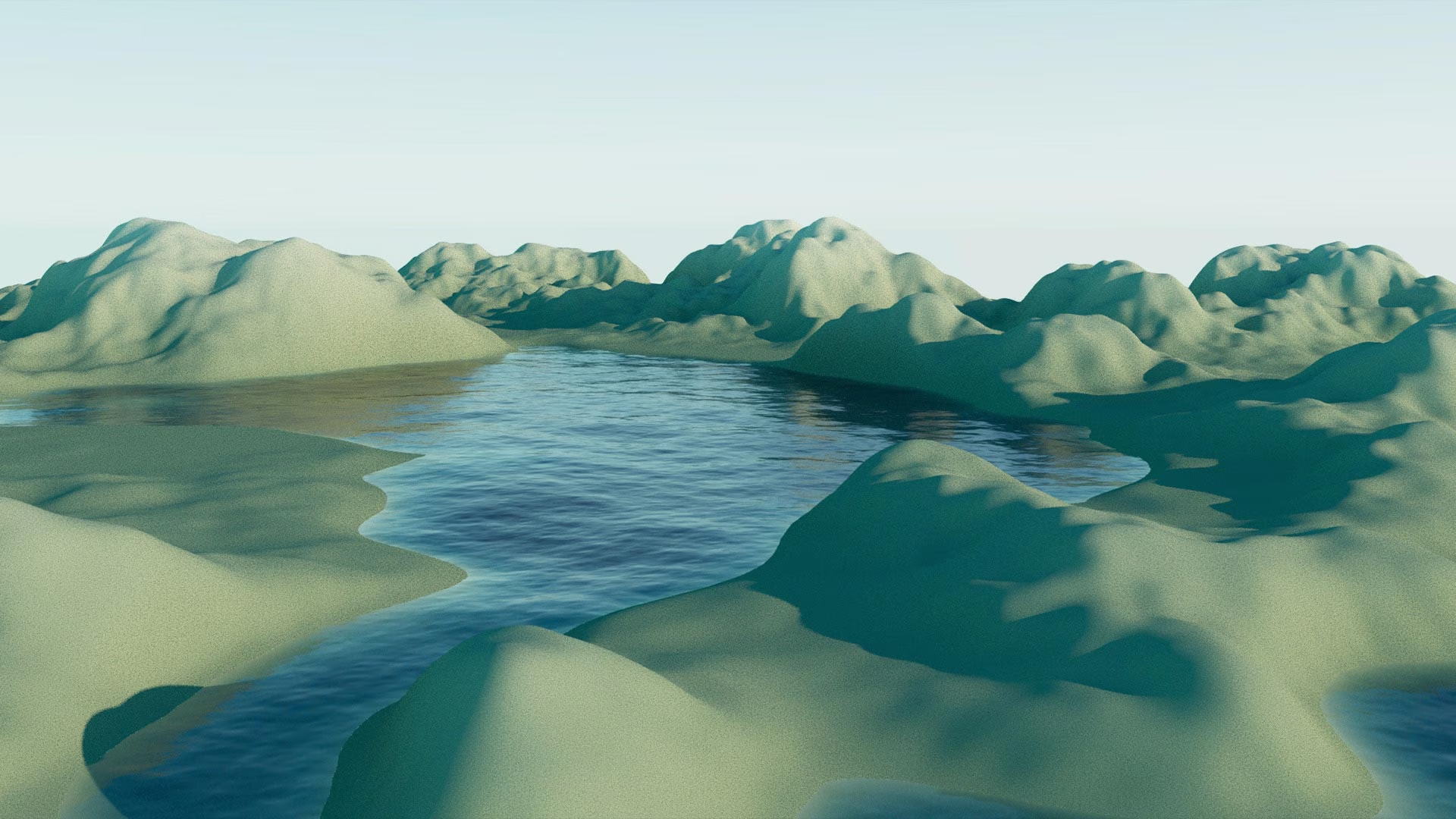
In your liquid solver settings, the Master Voxel Size controls simulation resolution. A smaller voxel size increases detail but exponentially multiplies simulation time and memory usage. Start with a coarse voxel size for layout, and refine it for your final export.
4. Simulating Hyper-Realistic Spray, Bubbles, and Splash Particles
The key to a believable fluid simulation lies in the secondary particles.
Toggle on Foam inside your Bifrost solver to automatically generate spray, bubble, and splash particles based on fluid velocity, curvature, and turbulence. This adds organic detail to wave crests and collision points.
5. Optimizing Voxel Allocations and Disk Caching Workflows
High-resolution fluid simulations can easily crash your workstation if they run out of memory.
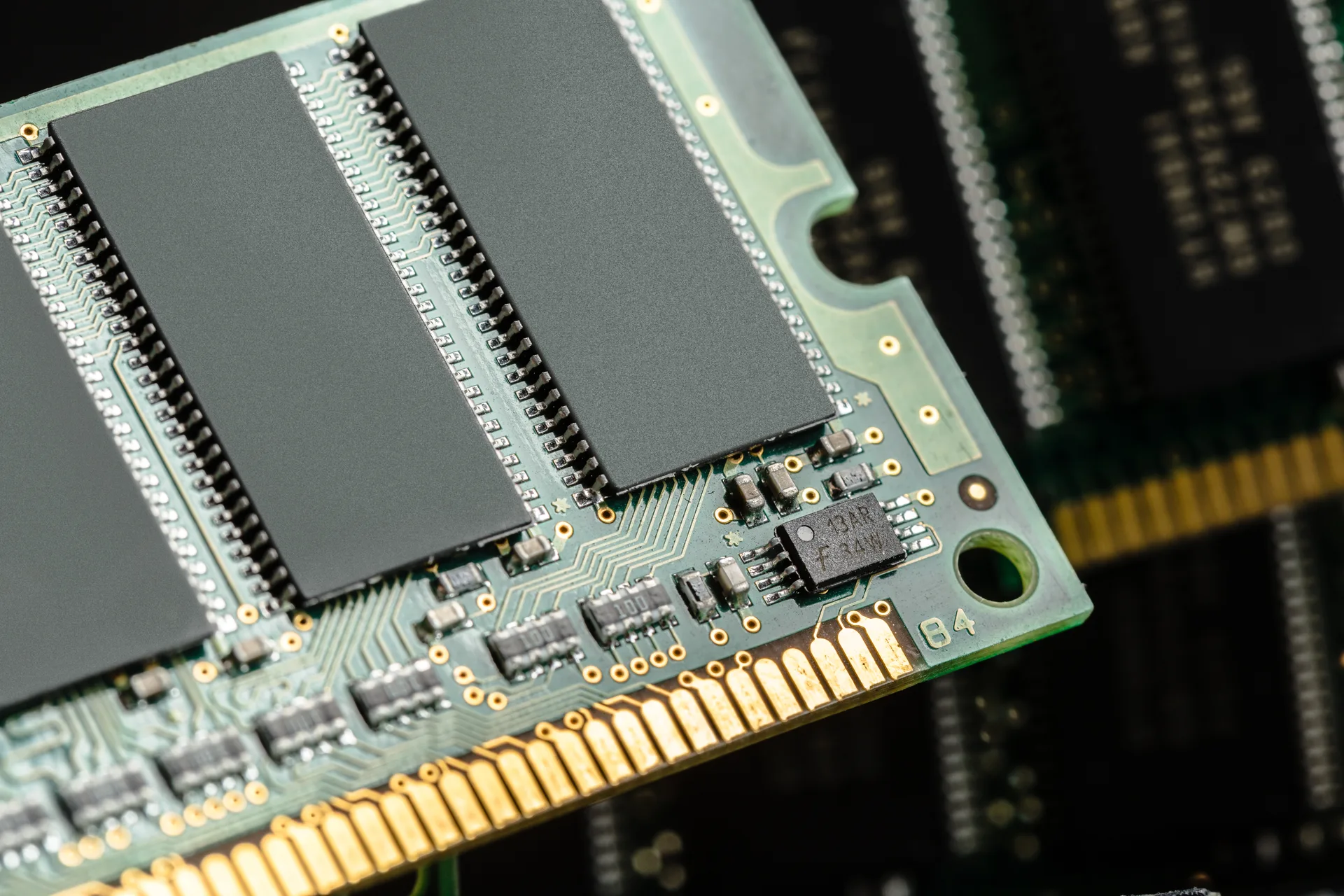
To prevent crashes, always write your simulation data to a fast SSD disk cache. Caching saves the simulation's state on a frame-by-frame basis, letting you resume interrupted simulations and keeping viewport scrub speeds smooth.
6. Shading Complex Fluid Mesh with Arnold Standard Surface
Once simulated, your fluid mesh must be shaded to interact realistically with light.
Apply an aiStandardSurface shader to your water mesh. Set the base weight to 0, transmission weight to 1, and roughness to 0. Add a subtle teal or blue-green color to your transmission channel to simulate realistic light absorption in deep water.
7. Avoiding Simulation Artifacts and Joint Disconnections
When importing complex simulations back into Maya, look out for common pipeline issues.
Ensure your project's frame rate matches your simulation cache settings exactly. Discrepancies can lead to out-of-sync meshes, clipping, or visual jitters that ruin your final animation.
8. Offloading Heavy Bifrost Compute to Sky Render Farm's Multi-GPU Clusters
Simulating and rendering high-resolution fluid meshes with volumetric fog, foam particles, and motion blur is incredibly intensive.
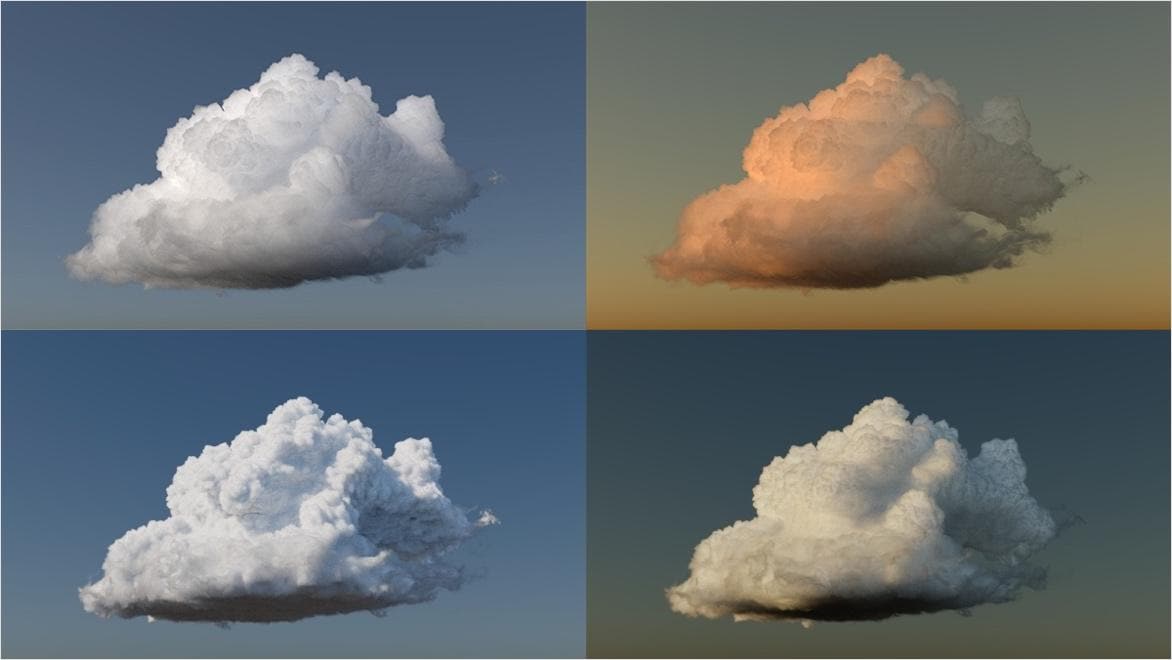
Sky Render Farm's powerful rendering nodes process heavy Bifrost computations with ease, helping you deliver clean, photorealistic ocean FX under tight deadlines.