A render farm is a group of computers that renders your 3D scenes for you. Instead of one workstation working through an animation frame by frame, the frames are shared across many machines at once, so a job that would keep your own computer busy for two days can finish in an hour or two.
This guide explains how a render farm works, the difference between CPU and GPU farms, how pricing is usually calculated, and how to decide whether you need one at all.
How a render farm works
Every render farm, whatever it calls its parts, does the same four things:
- Receives your scene. You upload the scene file together with everything it depends on: textures, caches, linked files and plugin settings.
- Splits the work. An animation is divided into frames, and each frame is sent to a different machine (a node). A single very large still can be split into tiles.
- Renders in parallel. Every node renders its share at the same time. Ten nodes finish roughly ten times sooner than one.
- Returns the output. Finished frames come back to you as image files, ready for compositing or editing.
The speed gain comes almost entirely from step 3. A render farm does not make a single frame render faster than it would on the same hardware at home. It renders many frames at once.
Cloud render farm vs. building your own
Studios used to build their own farm: a rack of machines in a back room, a render manager, and somebody to keep it all running. That still makes sense for a studio rendering around the clock. For most artists and small to mid-sized teams, a cloud render farm is the better deal:
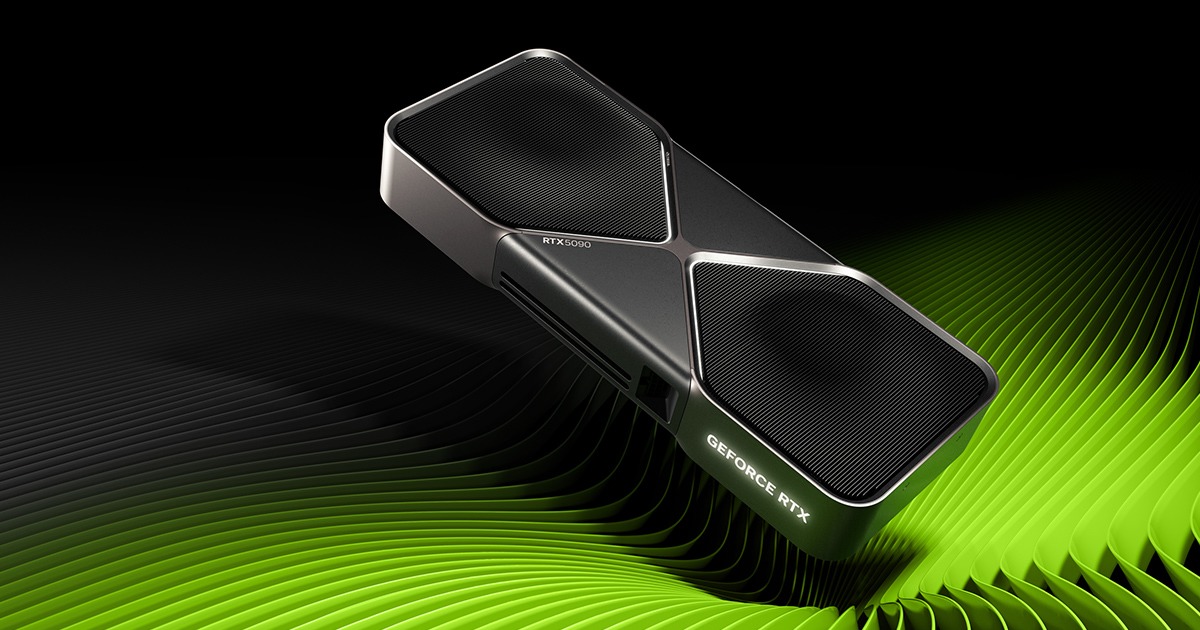
- No hardware to buy. An RTX 5090 workstation is a large up-front cost that sits idle between deadlines.
- Capacity on demand. You rent fifteen machines for the night of the deadline and none the rest of the month.
- Current hardware. The farm upgrades its cards; you do not.
- Your workstation stays free. You keep working while the farm renders.
CPU render farms and GPU render farms
Render engines run on either the processor (CPU) or the graphics card (GPU), and the farm has to match.
- GPU engines such as Blender Cycles (with OptiX or CUDA), Redshift, and Unreal Engine's Path Tracer are usually far faster per frame on modern RTX cards. The limit is graphics memory (VRAM): the scene has to fit on the card.
- CPU engines such as V-Ray CPU, Corona and Arnold CPU scale with core count and system RAM, and handle enormous scenes that do not fit in VRAM.
We cover the trade-off in detail in GPU vs CPU rendering: which one should you choose?.
Managed farms and node rental
There are two ways a cloud farm can sell you its machines, and it is worth knowing which one you are using.
Managed cloud rendering. You submit a job; the farm decides which machines render it and bills you for the compute your job used. You do not choose the hardware. This is convenient for applications with complex licensing, such as 3ds Max, Maya and Cinema 4D.
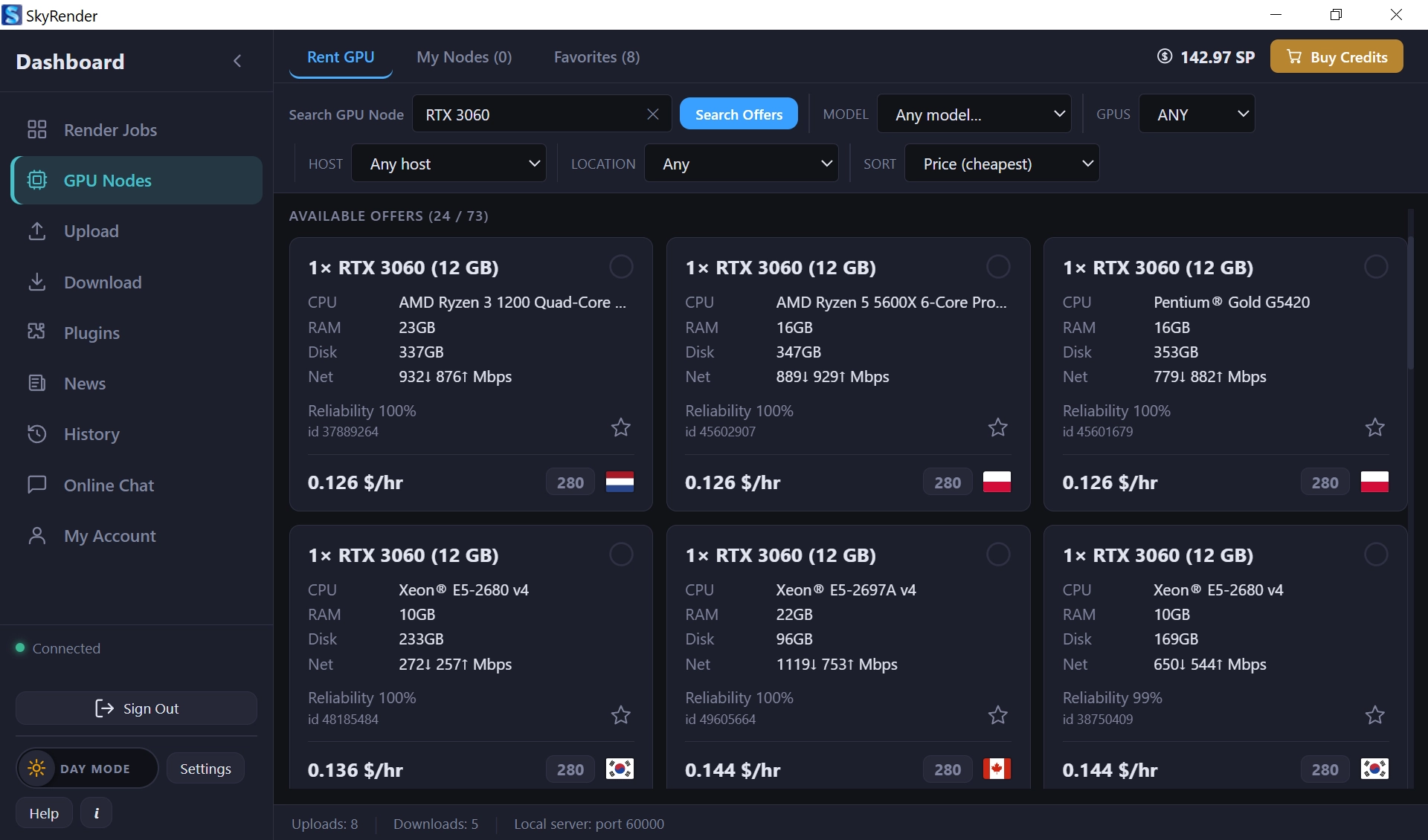
Node rental. You choose the graphics cards yourself, rent as many as you want, and pay for the time they run. Nothing is shared, so there is no queue: the job starts as soon as the machines are rented.
Sky Render Farm runs both. Blender and Unreal Engine are rented by the node, on RTX 3090, RTX 4090 and RTX 5090 cards, billed by the second. 3ds Max, Maya and Cinema 4D run as managed cloud rendering, billed by the CPU and GPU hours the job uses. Both draw from the same prepaid balance.
How render farm pricing works
Almost every farm prices in one of three ways:
- Per GHz hour (CPU). One processor core at 1 GHz for one hour. The job's total is predictable no matter which machine happens to render it.
- Per GPU hour or per node hour. The time a graphics card or machine is busy with your job.
- Credits. You prepay for credits and the farm deducts them as you render. Credits are usually priced in one of the two units above.
The things that actually decide your bill are the render time per frame, the number of frames, and the hardware. Displacement, fur, volumetrics, high sample counts and heavy particle systems all raise render time. For a worked breakdown, see Render farm pricing in 2026: how much does cloud rendering cost?.
What to check before choosing a render farm
- Software and version support. The farm must run your version of your application and render engine, not just "Blender". A scene saved in Blender 4.2 should render in 4.2. The supported software list shows every version Sky Render Farm loads.
- Plugins. If your scene uses Forest Pack, RailClone, X-Particles or similar, confirm the farm has them before you pay for a node.
- Queue time. On shared farms, a busy week can mean waiting hours before your job starts.
- Billing granularity. Per-second billing and per-hour billing produce very different totals on short jobs.
- Test credits. A good farm lets you render a few test frames free, so you can see the real time and cost before committing.
- How files move. A desktop app that uploads only what changed and downloads frames automatically saves hours on large projects.
Do you need a render farm?
You probably do if any of these is true:
- Your animation would take more than a night to render locally.
- A client deadline arrives before your machine could finish.
- You need your workstation for something else while the render runs.
- You want to try a heavier look (more samples, more bounces, volumetrics) than your hardware can handle in time.
You probably do not if you render occasional stills that finish in minutes.
Try it on your own scene
The quickest way to judge a farm is to render a real scene on it. New Sky Render Farm accounts receive free SkyPoints for test jobs. Download SkyRender Desktop, submit two or three frames from your 3D application with the Sky Sender plugin, and compare the time and cost with your own machine. The Quick Start guide walks through the first job step by step.